Mapping TUPAS users to external directories - SSO
This page describes the configuration for mapping a user that has signed in using a TUPAS bank to an external directory user. This requires the storage of the user's HETU in an attribute in the external directory. In this way, up-to-date user attributes from external directories can be sent to target applications.
Example Use Cases
Some example use cases for this configuration:
- To strongly authenticate a restricted number of users and provide access to a resource based on attributes found in an external directory
- For example: users from AD group board-members can access an application to review the annual-report-draft.
- To strongly authenticate users and provide the target applications with attributes found only in an external directory and not supplied by the banks
- For example: users log in using TUPAS, and their telephone number and office location is found from an external LDAP and passed to the target application.
Configuration
The following steps are required:
- Find a suitable attribute in the external directory for the storage of the HETU information. Consider carefully which attribute is used for this mapping and determine if the attribute is user modifiable, depending on whether or not this is desirable for the chosen use case.
An example field in AD is pager. - Pre-populate the chosen field with the user's HETU using the tools provided by the external directory.
- Enable External Directory Integration for the nominated external directory.
- Refer to Ubisecure External Directory Integration guide for configuration instructions. This step is only required if the external directory has not been configured previously.
- A successfully configured External Directory Integration can be verified from the following settings:
- Ensure
externaldirectory.propertiesproperty is found inconfig.indexfile - Ensure
custom/externaldirectory.propertiesexists and is configured appropriately.
- Ensure
Do not proceed until the following line appears in the
uas3_diaglog after restarting UbisecureServer:init External Directory: ldap://example.com/cn=Users,dc=example,dc=com : connected
- Allow all of the desired Authentication Methods to trust the external directory.
To enable the TUPAS authentication method to trust an external directory for mapping purposes, the name of the trusted external directory must be listed in the
ubiloginConfStringattribute of the authentication method object. This is done by modifying the ldif file as shown in Listing 1 and then importing it as shown in either Listing 2 (Windows) or Listing 3 (Linux).NOTE: On the line
ubiloginConfString: directory ldap://example.com/
the example.com must be replaced with an exact match to the domain name used in the externaldirectory.properties setting java.naming.provider.url.
All values in red must be changed to suit the Ubisecure Directory.
The dn: setting can be derived from examples found in the custom/methods.ldif file.
The addition of this trust element does not impact the use of TUPAS for possible existing unregistered use cases.
Listing 1. tupas-trust.ldif - Allows TUPAS to trust external directories# this command updates the TUPAS authentication method to trust an external directory: dn: cn=tupas.nordea.1,cn=Server,ou=System,cn=Ubilogin,dc=www,dc=example,dc=com changetype: modify add: ubiloginConfString ubiloginConfString: directory ldap://example.com/ - # this command updates the TUPAS authentication method to trust an external directory: dn: cn=tupas.BANK2.1,cn=Server,ou=System,cn=Ubilogin,dc=www,dc=example,dc=com changetype: modify add: ubiloginConfString ubiloginConfString: directory ldap://example.com/ - # Add additional commands for each TUPAS bank in use using the examples above
Listing 2. Initializing Ubisecure Directory and TUPAS in Linuxcd /usr/local/ubisecure/ubilogin-sso/ubisecure/ubilogin/ldap sh openldap/linux/import.sh tupas-trust.ldif
Listing 3. Initializing Ubisecure Directory and TUPAS in Windowscd /d "c:\Program Files\Ubisecure\ubilogin-sso\ubilogin\ldap" adam\import.cmd tupas-trust.ldif
Create a Directory User Mapping entry:
- In the Ubisecure Management application, select Home → Directory User Mappings → New Mapping...
In the Name field, write:
TUPAS HETU Mapping
In the Description field, write:
Map a user's HETU from TUPAS to an external directory.
Click OK.
- From the blue menu, select User Mappings.
Click Add...
Directory User Mapping Entry window opens.
Fill the fields as described in the table below:Field
Example Values and Descriptions
Select: Ubilogin Directory
Gives a preset for the installed servicePrecondition:
method:CUSTTYPE=01 Mapping will be attempted only if CUSTTYPE is person
method:CUSTTYPE=03 Mapping will be attempted only if CUSTTYPE is company
(blank) Mapping will be attempted alwaysServer:
ldap://example.com
Must match the server name used in ubiloginConfString of Listing 1, including the trailing slash.Distinguished Name (DN):
cn=Users,dc=example,dc=com
The DN where the mapped users are found.Scope (base, one or sub):
Search scope. Either base, one, or sub.
- Base The object defined by the Distinguished Name value only.
- OneExactly one level below the object defined by the Distinguished Name.
- SubDescendants of the object defined by the Distinguished Name, including the object itself.
Filter:
For mapping to Active Directory pager attribute
(&(objectClass=person)(pager ={method:CUSTID}))
For mapping to Ubisecure Directory organization attribute
(&(objectClass=ubiloginUser)(o={method:CUSTID}))
Consider carefully which attribute is used for this mapping and determine if the attribute is user modifiable and whether or not this is desirable for the chosen use case.Table 1. Sample Directory User Mapping values

Figure 1. Example of a Directory User Mapping configuration
Enable Directory User Mapping for each of the TUPAS authentication methods
In the Ubisecure Management application, select Home → Directory User Mappings, select TUPAS HETU Mapping, select Methods from the blue menu, mark all TUPAS authentication methods as selected, and press Update....

Figure 2. Directory User Mapping enabled for TUPAS authentication methods
- For each target application to be used:
- Ensure that all desired TUPAS authentication methods are enabled for the site/subsite of the agent. (Home → Site, select Site Methods, click Add...)
- Enable every desired TUPAS authentication method for the Application. (select Application, then select Allowed Methods)
- Create a group for the users that may use the application. The group will be based on dynamic members. For more information, please refer to the Management user interface - SSO, page on Dynamic Members. For example, group membership can be formed using templates based on Active Directory group membership. The setting below allows any user found in Active Directory to access the target application if HETU has also been found:
Go to Home → Site, click New Group...
General Tab:Field
Example Values and Descriptions
Name:
TUPAS Users for application X
Description:
Members of this group can access application X by TUPAS
Dynamic Members Tab:Field
Example Values and Descriptions
Service: Ubilogin Directory
Gives a preset for the installed serviceServer:
ldap://example.com
This value must match the server name used in ubiloginConfString of Listing 1, including the trailing slash.Distinguished Name (DN):
cn=Users,dc=example,dc=com
The DN where the mapped users are found.Attributes:
blank
Scope (base, one or sub):
Search scope. One of base, one, or sub.
- Base
The object defined by the Distinguished Name value only. - One
Exactly one level below the object defined by the Distinguished Name. - Sub
Descendants of the object defined by the Distinguished Name, including the object itself.
- Base
Filter:
For mapping to all Active Directory users using Generic Template:
(objectClass=person)For mapping to Active Directory with additional rules using Generic Template (in this example, the user must have the department in AD set as Sales):
(&(objectClass=person)(department=Sales))For filtering based on AD group membership, please refer to the Ubisecure SSO Management Guide, chapter on Dynamic Members.
For mapping to Ubisecure Directory:
(objectClass=ubiloginUser)Consider and review carefully the rules defined here. Remember to use an LDAP Filter which excludes locked accounts if appropriate, otherwise a user that has been locked in AD will be allowed access to the target application.

Figure 3. Generic Group Dynamic Member example for all AD users - Add the newly created dynamic group to the "Allowed To" list of the target application's application:
Select Application, select Allowed To, click Add...
- Configuration is complete. Test the configuration.
Troubleshooting
uas3_diag log entry: directory not trusted
Indicates ldif import failure or LDAP directory name mismatch.
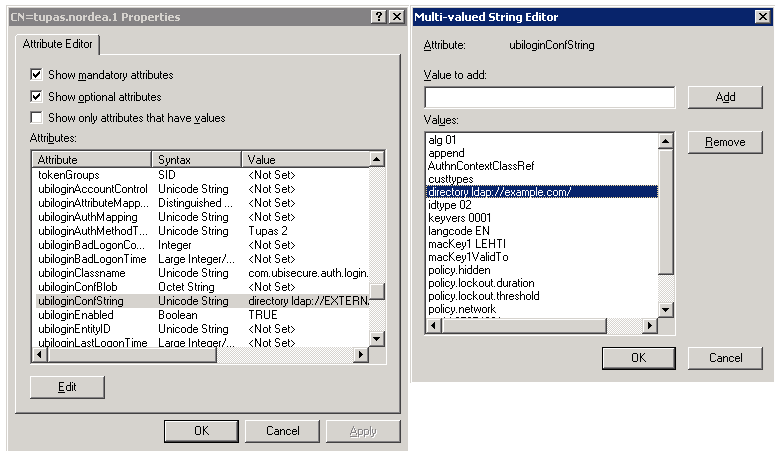
Upon successful completion of the ldif import, each TUPAS authentication method in the hierarchy CN=Server,OU=System,CN=Ubilogin has an multi-value attribute ubiloginConfString, with a value directory ldap://example.com/ .
This can be verified with an LDAP browser tool as shown in Figure 4.
|
|---|
| Figure 4. Verifying external directory trust for a TUPAS authentication method |
This web page (including any attachments) may contain confidential, proprietary, or privileged information – not for disclosure without authorization from Ubisecure Inc. Copyright © 2025. All Rights Reserved.